WordPress Widgets and Sidebars: A Simple Guide for Beginners
When you are managing a WordPress website, you will eventually encounter an area of your dashboard labelled Widgets. These small but versatile tools give you the ability to add features and content to specific areas of your site without any coding. But what exactly are WordPress widgets, where do they go, and how do you use them effectively? At JWD Website Design, we configure WordPress widgets on every client site we build, and this guide will give you a clear, practical understanding of what they are and how to make the most of them on your website.
What Are WordPress Widgets?
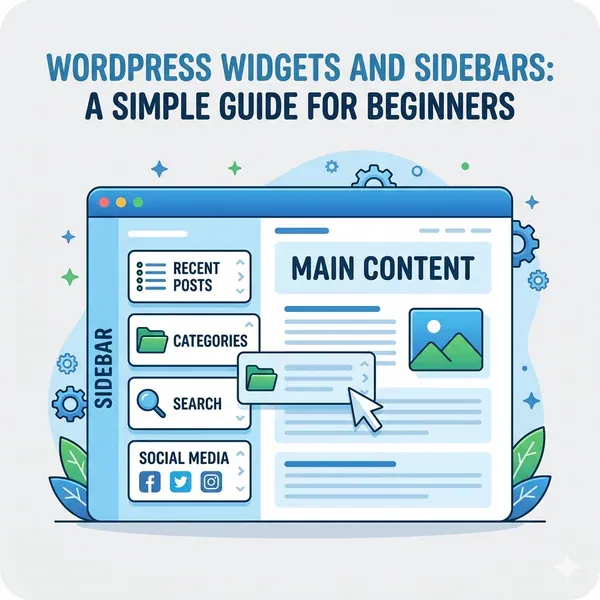
WordPress widgets are small, self-contained blocks of content or functionality that can be placed in designated areas of your website called widget areas or sidebars. Each one serves a specific purpose: displaying recent posts, showing a search bar, listing categories, embedding a social media feed, or showing your business contact details.
Think of them as the modular furniture of your website. You have specific zones where furniture can go, and you can choose which pieces to put in each zone, move them around, and remove them without affecting the rest of your site.
The key thing about WordPress widgets is that they appear in areas outside the main content of your pages. They typically appear in sidebars, headers, footers, and other template areas defined by your theme.
What Are Widget Areas?
WordPress widgets go into widget areas, which are zones defined by your active theme. Common widget areas include:
- Main Sidebar: A column that runs alongside your main content on blog post pages. The main sidebar is the most traditional location for WordPress widgets and is where you will most often see search bars, category lists, and popular post lists.
- Footer Widget Areas: Many themes provide two, three, or four columns in the footer that accept widgets. These are ideal for contact information, a condensed menu, social media links, or a recent posts list.
- Header Widget Area: Some themes provide a zone above or within the header that accepts widgets. This is commonly used for contact details or a phone number.
The exact widget areas available depend entirely on your active theme. With the Divi theme used by JWD Website Design, you have significant flexibility in designing these areas visually rather than relying purely on the traditional widget system. If you are choosing a theme as part of a new build, our website design packages include this setup done properly from the start.
The Most Useful WordPress Widgets
| Widget | What it does |
|---|---|
| Search Widget | Adds a search bar to your sidebar or footer. Essential for content-heavy sites with a large blog |
| Recent Posts Widget | Displays a list of your latest blog posts. Valuable for keeping your blog visible to visitors who land on interior pages |
| Categories Widget | Shows a list or dropdown of your blog categories. Helps visitors navigate your content by topic |
| Text/HTML Widget | One of the most flexible WordPress widgets. It lets you add any custom text or HTML to a widget area, useful for a short business description or a promotional message |
| Image Widget | Displays a single image with an optional link. Useful for a logo, a promotional banner, or a trust badge |
| Navigation Menu Widget | Adds a complete menu to a widget area. This is how footer menus are created on many sites: build the menu in the Menus section and then display it via a widget in the footer area |
| Custom HTML Widget | Accepts raw HTML code. You can use it to embed a Google Map, a booking widget, a social media feed, or any third-party code snippet |
How to Add WordPress Widgets
Adding WordPress widgets to your website is done from your WordPress dashboard. Here is the process:
Step 1: Log in to your dashboard
Log in to your WordPress dashboard. If you need a refresher, read our guide on how to log in to your WordPress website.
Step 2: Open the Widgets screen
In the left-hand menu, go to Appearance and then Widgets.
Step 3: Find the editor
You will see the Widgets editor. On the left you see available WordPress widgets. On the right you see your available widget areas.
Step 4: Expand a widget area
Click on a widget area to expand it. You will see any widgets currently placed there.
Step 5: Add a widget
Click the + button inside the widget area to add a new widget. You can search for a specific one or browse the options.
Step 6: Configure the settings
Configure the widget’s settings. Most have a title field and content-specific settings.
Step 7: Save your changes
Click Update to save your changes.
To move WordPress widgets, drag and drop them within a widget area or between areas. To remove one, click the three-dot menu on the widget and select Delete.
The Block Widgets Editor vs the Classic Widgets Editor
In modern versions of WordPress, the Widgets editor uses the block-based interface (the same Gutenberg editor used for pages and posts). This means you add WordPress widgets in the same way you add blocks to a post, using the + button to insert block-based widgets. If you prefer the older drag-and-drop interface, a plugin called Classic Widgets restores that experience. However, the block widgets editor is the current standard.
WordPress Widgets vs Page Builder Modules
With a modern page builder like Divi (which JWD Website Design uses), there is some overlap between what WordPress widgets do and what page builder modules do. The practical distinction is this: widgets appear in template areas defined by your theme (sidebars, footers, specific zones). Page builder modules are placed directly into the content area of individual pages.
For footer design in particular, JWD Website Design often uses Divi’s native footer builder rather than the traditional widget system. This gives far more design flexibility: custom columns, styled icons, hover effects, and full responsive control.
WordPress Widgets and Performance
One thing to be aware of with WordPress widgets: every widget you add is additional content your server needs to load. Some third-party widgets, particularly those embedding social media feeds or live data, can add noticeable loading time to your site. If performance is a concern, review your widgets regularly and remove any that are not adding clear value. You can read our full guide on how to speed up WordPress for a comprehensive approach to performance optimisation, and consider fast local hosting to give your site a strong foundation.
Keeping WordPress Widgets Updated and Relevant
Widget areas, particularly footers, often get set up once and then forgotten. Over time they can contain outdated contact details, expired promotions, or links to pages that no longer exist. Include a review of your WordPress widgets as part of your regular website maintenance routine. JWD Website Design includes a content and structure review as part of our website maintenance packages for South African businesses.
WordPress Widgets in Summary
WordPress widgets give you an accessible, no-code way to add features and content to designated areas of your website. The most important thing is understanding where your widget areas are, which widgets to use in each location, and keeping those areas clean and current.
If you are building a new WordPress website or planning a redesign, explore our website planning guide to think through your full site structure before you start. And for a professionally built, fully configured WordPress website for your South African business, request a quote from JWD Website Design or browse our full range of web design and SEO services to see exactly how we can help.
Frequently Asked Questions
What are WordPress widgets?
WordPress widgets are small, self-contained blocks of content or functionality placed in designated areas of your site called widget areas or sidebars. Each serves a specific purpose, such as displaying recent posts, showing a search bar, listing categories, embedding a social media feed, or showing your business contact details. They appear in areas outside the main content of your pages.
Where do WordPress widgets appear on my site?
Widgets go into widget areas defined by your active theme. Common areas include the main sidebar, which runs alongside your content on blog post pages, footer widget areas (often two, three, or four columns), and a header widget area used for details like a phone number. The exact areas available depend entirely on your active theme.
How do I add a widget in WordPress?
From your WordPress dashboard, go to Appearance and then Widgets to open the Widgets editor. Expand a widget area, click the + button inside it to add a new widget, configure the widget’s title and content settings, then click Update to save. To move widgets you drag and drop them, and to remove one you use the three-dot menu and select Delete.
Do WordPress widgets slow down my website?
Every widget you add is additional content your server needs to load, and some third-party widgets, particularly those embedding social media feeds or live data, can add noticeable loading time. If performance is a concern, review your widgets regularly and remove any that are not adding clear value. A strong foundation like fast local hosting starts at R99 per month.
What is the difference between WordPress widgets and page builder modules?
The practical distinction is location. Widgets appear in template areas defined by your theme, such as sidebars, footers, and specific zones. Page builder modules, like those in Divi, are placed directly into the content area of individual pages. For footers in particular, JWD often uses Divi’s native footer builder for more design flexibility, including custom columns, styled icons, and full responsive control.