Mastering the WordPress Critical Rendering Path: A Guide to Lightning-Fast Page Loads
Welcome back to our ultimate guide on how to build a lightning-fast WordPress website. We’ve already covered the absolute essentials in Part 1 (hosting, themes, and caching) and dove deep into advanced server-side optimizations in Part 2. Now, in this crucial third installment, we’re going to tackle a concept that can make or break your site’s perceived speed: the WordPress Critical Rendering Path.
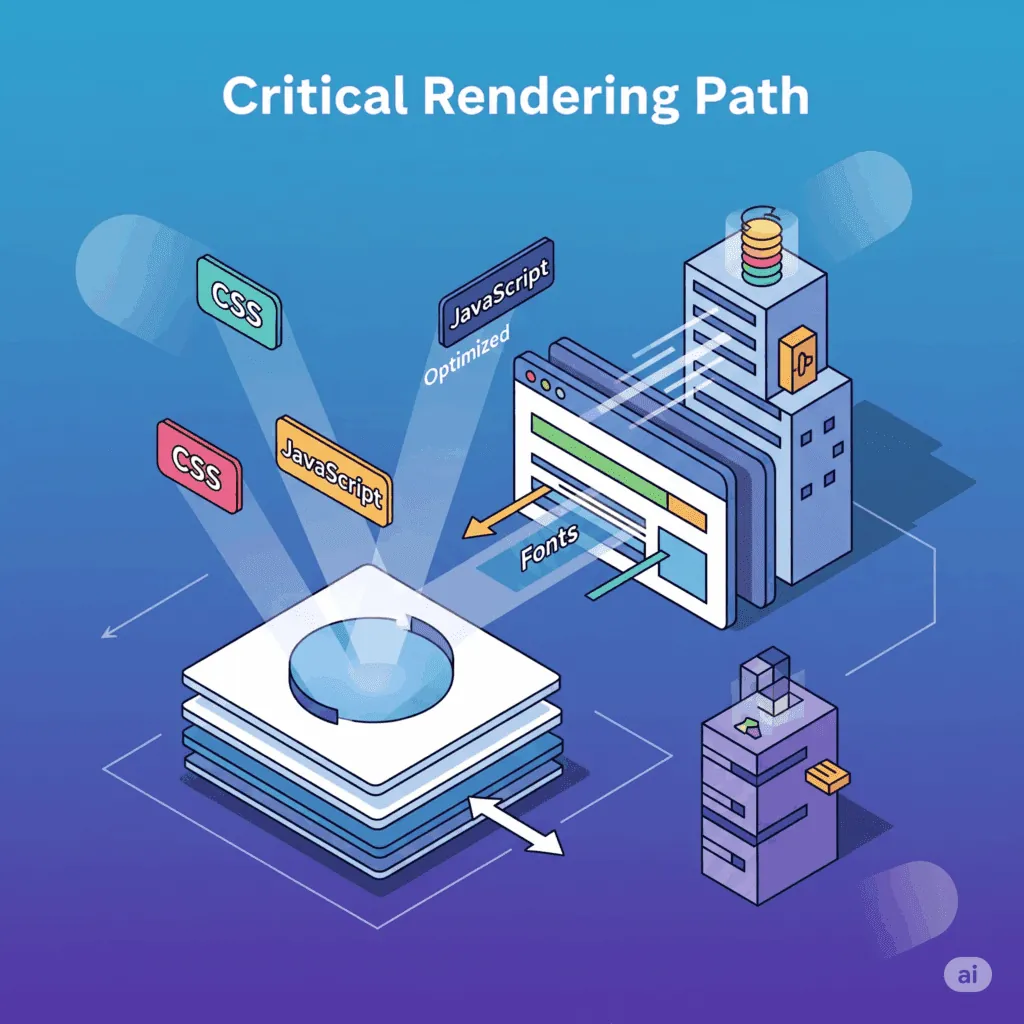
For the average website manager, this phrase might sound intimidating, but it’s actually a straightforward idea. Imagine your web browser is a skilled builder. When a user requests your website, the browser doesn’t just display it all at once. Instead, it carefully constructs the page piece by piece. The Critical Rendering Path (CRP) is the sequence of steps that the browser takes to turn your site’s code into a usable, pixel-perfect web page. It’s the time from the moment the browser receives the first byte of data until it can start painting the content on the screen.
If this path is blocked or inefficient, your users will stare at a blank white screen, and that’s a surefire way to lose them. By mastering the WordPress Critical Rendering Path, you can ensure your website’s content appears almost instantly, providing a superior user experience and boosting your Core Web Vitals scores. It’s the same speed-first thinking we apply to every business website we build.
1. Deconstructing the Path: What Happens Behind the Scenes?
To optimize the CRP, you first have to understand the three main steps a browser takes to build your page:
- DOM (Document Object Model): The browser reads your HTML file and creates a logical structure of the page, essentially a blueprint of all your elements (headings, paragraphs, images, etc.).
- CSSOM (CSS Object Model): Next, the browser reads your CSS files and builds a structure of all the styles on your page (colors, fonts, sizes).
- The Render Tree: Finally, the browser combines the DOM and CSSOM to create the final “render tree,” which is what it uses to actually draw the elements on the screen.
The problem is, the browser can’t create the Render Tree until it has both the DOM and the CSSOM. This is why certain resources can “block” the rendering process, forcing your users to wait. Our mission is to remove these roadblocks and clear the path.
2. The Two Main Culprits: Render-Blocking Resources
The most common culprits for a slow WordPress Critical Rendering Path are render-blocking CSS and JavaScript files. When the browser encounters an external stylesheet or a script in the section of your HTML, it stops everything to download and process that file. This is like a builder waiting for a delivery of bricks before they can even start laying the foundation.
- Render-Blocking CSS: Your browser needs to know all the styles before it can paint the page correctly. This means any external CSS files must be loaded first, which can cause a delay.
- Render-Blocking JavaScript: Scripts can modify the structure of the page, so the browser has to wait for them to be executed before it can render.
To truly optimize a WordPress website, you have to find a way around this. Pairing these techniques with fast local hosting gives the browser the quickest possible head start.
3. Optimizing CSS to Master the WordPress Critical Rendering Path
The goal is to get the absolutely essential styles to the browser as quickly as possible. These are the styles needed to render the content that’s visible “above the fold” (the part of the page a user sees without scrolling).
- Inlining Critical CSS: This technique involves taking the small amount of CSS needed for the visible portion of your site and embedding it directly into the section of your HTML. This allows the browser to start rendering almost immediately without waiting for an external file. Many modern caching and optimization plugins (like WP Rocket and Autoptimize) have a feature to automatically generate and inline this Critical CSS for you.
- Deferring the Rest: Once the critical CSS is in place, you can tell the browser to load the rest of your CSS asynchronously. The browser will begin rendering the content while the rest of the styles load in the background. This is a game-changer for perceived speed.
- Using @media Queries: For larger websites, you can use @media queries in your stylesheets to conditionally load CSS. For example, you can tell the browser to only load the styles for print, mobile, or specific screen sizes when they are needed.
4. Conquering JavaScript for a Faster Site
JavaScript is often more complex to optimize. A common mistake is to load all JavaScript files in the , blocking the browser from rendering the page.
The async and defer attributes are your two best friends for advanced WordPress Critical Rendering Path optimization.
- async: This attribute tells the browser to download the script in the background without blocking the HTML parsing. Once the script is downloaded, it will pause the HTML parsing to execute it. This is great for scripts that don’t depend on other scripts, like analytics trackers.
- defer: This attribute tells the browser to download the script in the background while parsing the HTML. It then waits until the entire HTML document is parsed before executing the script. This is ideal for scripts that depend on the final structure of the page, like those that animate elements.
- Minimizing Third-Party Scripts: Many websites are loaded with third-party scripts from ad networks, social media widgets, and other services. Each of these is a separate request that can slow down your site. Audit all of your third-party scripts. Ask yourself: “Do I truly need this functionality?” If the answer is no, remove it. If the answer is yes, use a plugin like Perfmatters or Asset CleanUp to disable them on pages where they aren’t needed.
5. The Hidden Speed Killer: Font Loading Optimization
Custom fonts are beautiful but can significantly impact your page load speed. The browser must download the font files before it can display the text, which can lead to a “flash of invisible text” (FOIT).
- Font Display: Swap: This is the most popular solution. The
font-display: swap;CSS property tells the browser to use a fallback font (like Arial or Times New Roman) while your custom font is loading. Once the custom font is ready, it swaps it in. This gives your users an instant reading experience and is a critical step in WordPress Critical Rendering Path optimization. - Preloading Fonts: You can use preload hints to tell the browser to start downloading your most important font files as soon as possible. Use this sparingly, as preloading too many files can be counterproductive.
6. Putting It All Together: A Unified Strategy
Optimizing the WordPress Critical Rendering Path isn’t about one magic bullet; it’s about a holistic approach. By inlining critical CSS, deferring the rest, loading JavaScript asynchronously, and managing your fonts, you give the browser the tools it needs to build and display your website as quickly as possible. This is the difference between a sluggish site and one that feels instantaneous.
Keeping a site this fast over time takes upkeep, which is exactly what our website maintenance plans are designed to handle. If your speed scores have already slipped, our SEO Rescue service can get performance and rankings back on track.
For more information on these topics, check out this great resource on what the Critical Rendering Path is and how to optimize it. And for a refresher on the basics, be sure to visit our previous article on WordPress Performance Optimization.
By applying these advanced techniques, your website will be ready to meet and exceed user expectations in 2025 and beyond.
What’s Next?
This is the third installment of our five-part series. In Part 4 we dive into advanced WordPress debugging techniques, showing you how to use tools like Chrome DevTools to analyze your performance, identify bottlenecks, and pinpoint the exact issues slowing your site down.
Need a Fast, Professional WordPress Website?
JWD Website Design builds high-performance WordPress websites for South African businesses. We handle the setup, speed optimisation, security, and ongoing maintenance so you can focus on running your business. Browse our website design packages or get a free quote and let’s build you a site that loads in a blink.
Related reading: How to Speed Up WordPress Fast 2025 • Advanced WordPress Server Optimisation • Advanced WordPress Debugging • Complete WordPress Optimisation Strategy • WordPress Maintenance SA • WordPress On-Page SEO
Prefer the professional route? Our WordPress speed optimization service fixes this and every other speed issue for you.
Related reading: WordPress Server and Hosting Optimisation: PHP, OPcache, Object Caching, HTTP/3 and CDN.
Frequently Asked Questions
What is the WordPress Critical Rendering Path?
The Critical Rendering Path (CRP) is the sequence of steps a browser takes to turn your site’s code into a usable, pixel-perfect web page. It is the time from the moment the browser receives the first byte of data until it can start painting content on screen. If this path is blocked or inefficient, users stare at a blank white screen, so optimising it makes content appear almost instantly.
What are render-blocking resources in WordPress?
Render-blocking CSS and JavaScript files are the most common culprits. When the browser hits an external stylesheet or script, it stops everything to download and process that file. The browser needs all styles before painting correctly, and scripts can modify the page structure, so it must wait for them to execute before rendering. The article likens this to a builder waiting for bricks before laying the foundation.
How do I optimise CSS for faster page loads?
Inline the critical CSS needed for above-the-fold content directly into your HTML so rendering starts immediately without waiting for an external file. Plugins like WP Rocket and Autoptimize can generate and inline this for you. Then defer the rest of your CSS to load asynchronously, and use @media queries to conditionally load styles only when needed, such as for print or specific screen sizes.
What is the difference between async and defer for JavaScript?
The async attribute downloads a script in the background without blocking HTML parsing, then pauses parsing to execute it once downloaded, which suits independent scripts like analytics trackers. The defer attribute also downloads in the background but waits until the entire HTML document is parsed before executing, making it ideal for scripts that depend on the final page structure, like animation scripts.
How does font-display: swap improve page speed?
Custom fonts can cause a flash of invisible text (FOIT) because the browser must download the font files before showing text. The font-display: swap; CSS property tells the browser to use a fallback font like Arial or Times New Roman while your custom font loads, then swaps it in once ready. This gives users an instant reading experience. You can also preload your most important font files, but use this sparingly.