WordPress Menus Explained: How to Build and Edit Your Site Navigation
Navigation is one of the most important elements of any website. When a visitor lands on your site, your menu is the map that tells them where to go. Poor navigation drives people away. Great navigation guides them to exactly what they need, builds trust, and directly increases the chance of a visitor becoming a customer. WordPress menus are the system that powers this navigation, and understanding how they work gives you full control over how visitors experience your website. At JWD Website Design, we spend real time planning and building WordPress menus for every client site, and this guide will walk you through everything you need to know.
What Are WordPress Menus?
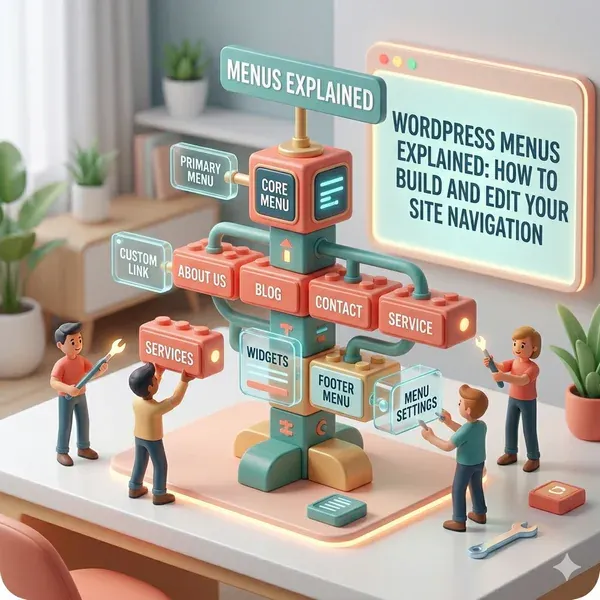
WordPress menus are a built-in navigation system that lets you create custom navigation bars for your website. You can add any page, post, category, custom link, or other content type to a menu, arrange them in any order, create dropdown sub-items, and assign them to different locations on your site like the main header, footer, or a sidebar.
WordPress menus are separate from your pages and posts. You could have twenty pages on your site but only show five of them in your navigation. You have complete control over what appears, where it appears, and in what order. Understanding them is closely related to understanding WordPress pages vs posts, because pages are the most common items added to navigation menus. Whether you are launching a 3-5 page website or a larger build, your menu structure shapes how every visitor moves through it.
Where WordPress Menus Appear on Your Site
Your WordPress theme determines how many menu locations are available and where they appear. Most themes support at least two or three locations:
- Primary navigation: The main menu that appears in the header of your website. This is the most important of your WordPress menus and the one visitors use most.
- Footer navigation: A secondary menu that appears in the footer of your website. This often contains links to legal pages like Privacy Policy and Terms and Conditions.
- Mobile navigation: Some themes use a separate mobile menu. Others use the same primary menu and transform it into a hamburger icon.
With the Divi theme used by JWD Website Design, there is significant flexibility in how WordPress menus are styled, positioned, and displayed at different screen sizes.
How to Create WordPress Menus
Creating WordPress menus is done from your WordPress dashboard. Here is how to do it step by step.
Step 1: Open the Menus screen
In your WordPress dashboard, go to Appearance and then Menus.
Step 2: Name and create your menu
Enter a name for your menu (like “Primary Navigation” or “Footer Menu”) and click Create Menu.
Step 3: Find the content panels
On the left side of the screen you will see panels for Pages, Posts, Custom Links, and Categories.
Step 4: Select your pages
Tick the boxes next to the pages you want to include. For your main navigation, this is usually your core pages: Home, About, Services, and Contact.
Step 5: Add them to the menu
Click Add to Menu. The selected items will appear in the menu builder area on the right.
Step 6: Arrange the order
Drag the items up and down to change their order. To create a dropdown sub-item, drag an item slightly to the right beneath its parent item. It will become indented, indicating it is a child item that will appear in a dropdown.
Step 7: Choose the menu location
Under Menu Settings at the bottom of the page, tick the box for the menu location where you want this menu to appear.
Step 8: Save your menu
Click Save Menu. Your WordPress menus are now live on your website.
Adding Custom Links to WordPress Menus
WordPress menus are not limited to pages and posts from your own site. You can add links to any URL, including external websites or specific sections of your pages. Open the Custom Links panel on the left side of the menu builder, enter the URL and link text, then click Add to Menu. Links leaving your site should generally open in a new tab, which you can set by expanding the item in the menu builder and ticking Open link in a new tab.
Creating Dropdown Menus
One of the most used features of WordPress menus is the ability to create dropdown navigation. For example, a Services menu item might have dropdown items for Web Design, SEO, Maintenance, and Graphic Design. To create a dropdown, simply drag a child item to the right of and below its parent item in the menu builder until you see it indent. Multi-level dropdowns are technically possible but generally not recommended as they are difficult to navigate on mobile devices.
WordPress Menus on Mobile Devices
Mobile navigation deserves special attention when configuring WordPress menus. Over half of web traffic in South Africa comes from mobile devices. Most modern WordPress themes, including Divi, automatically convert your desktop navigation into a mobile-friendly hamburger menu when viewed on smaller screens. When building for mobile, keep the number of top-level items limited to five to seven maximum, avoid very deep dropdown structures, and make sure touch targets are large enough for fingers.
Best Practices for WordPress Menu Structure
Keep it simple
Your primary navigation should have five to seven top-level items at most. Visitors should be able to scan your site and understand it in under three seconds.
Use clear, descriptive labels
Menu labels like “Services,” “About,” and “Contact” are clear. Labels like “Discover” or “Explore” are vague and unhelpful.
Put the most important items first (and last)
Research shows visitors pay most attention to the first and last items in a list.
Always include a clear Call to Action
Your navigation should include a way for visitors to take the primary action you want, whether that is getting a quote, contacting you, or viewing your shop. This is often styled as a button rather than a standard link. A menu link straight to your quote page or online shop gives visitors an obvious next step.
WordPress Menus and SEO
WordPress menus have a subtle but real effect on your SEO. Every link in your navigation is treated as an internal link by search engines. Links in your primary navigation carry particular authority because they appear on every page of your site. Pages you include in your WordPress menus receive more link equity than pages buried deep in your content. For a full understanding of how navigation affects your rankings, read our WordPress on-page SEO guide, and if your existing pages are underperforming our SEO Rescue service can help fix the foundations.
Getting Your WordPress Menus Right
WordPress menus are one of those elements that visitors rarely notice when done well, but immediately notice when done poorly. Investing time in a clear, logical navigation structure pays dividends in visitor satisfaction, lower bounce rates, and more conversions.
At JWD Website Design, we plan the navigation structure of every website we build before a single page is designed. Our website planning guide walks through the navigation planning process in detail. And our website design services for South African businesses give you a team that handles every detail correctly from the start. Follow us on Facebook to see our latest work.
Ready to build a website with navigation that actually converts? Request a free quote from JWD Website Design and let our team plan and build it for you from the ground up.
Frequently Asked Questions
How do I create a menu in WordPress?
From your WordPress dashboard, go to Appearance and then Menus. Give your menu a name and click Create Menu. Use the panels for Pages, Posts, Custom Links and Categories to tick the items you want, then click Add to Menu. Drag the items into the order you prefer, tick a menu location under Menu Settings, and click Save Menu to make it live.
How do I make a dropdown menu in WordPress?
Add your items to the menu builder, then drag a child item slightly to the right of and below its parent item until you see it indent. The indented item becomes a child that appears in a dropdown. For example, a Services item could hold Web Design, SEO, Maintenance and Graphic Design. Multi-level dropdowns are possible but generally not recommended, as they are hard to navigate on mobile.
How many items should be in my main navigation menu?
Keep your primary navigation to five to seven top-level items at most. Visitors should be able to scan your site and understand it in under three seconds. On mobile the same limit applies: keep top-level items to five to seven maximum, avoid very deep dropdown structures, and make sure touch targets are large enough for fingers.
Can I add a link to an external website in a WordPress menu?
Yes. WordPress menus are not limited to your own pages and posts. Open the Custom Links panel on the left of the menu builder, enter the URL and link text, then click Add to Menu. Links that leave your site should generally open in a new tab, which you can set by expanding the item in the menu builder and ticking Open link in a new tab.
Do WordPress menus affect SEO?
Yes, they have a subtle but real effect. Search engines treat every link in your navigation as an internal link, and links in your primary navigation carry particular authority because they appear on every page of your site. Pages included in your menus receive more link equity than pages buried deep in your content, so it pays to feature your most important pages.